Custom Model
Revornix supports custom third-party models, so you can configure the models you want to use.
Only models compatible with the openai protocol are currently supported (i.e., third-party models compatible with the openai api).
How to configure
- Click the settings button in the top-right to open Settings. Find the model configuration group and click Model Integration, then click Model Config to open the details page.

- Click Add Model Provider and configure the basic information. The name and description can be anything for your own reference. Then click Save.

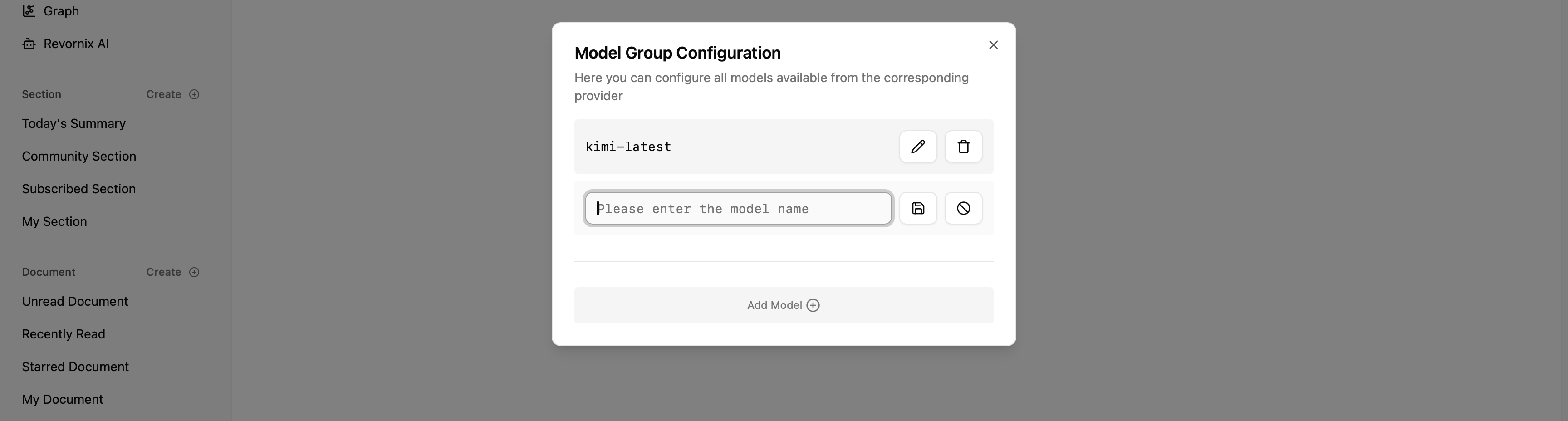
- Click Configure Model Group on the provider card to open the model group page. Click Add Model, enter the model name, then click Save on the right. The model name must be the exact official model name; you cannot make it up.
Share models / use shared models
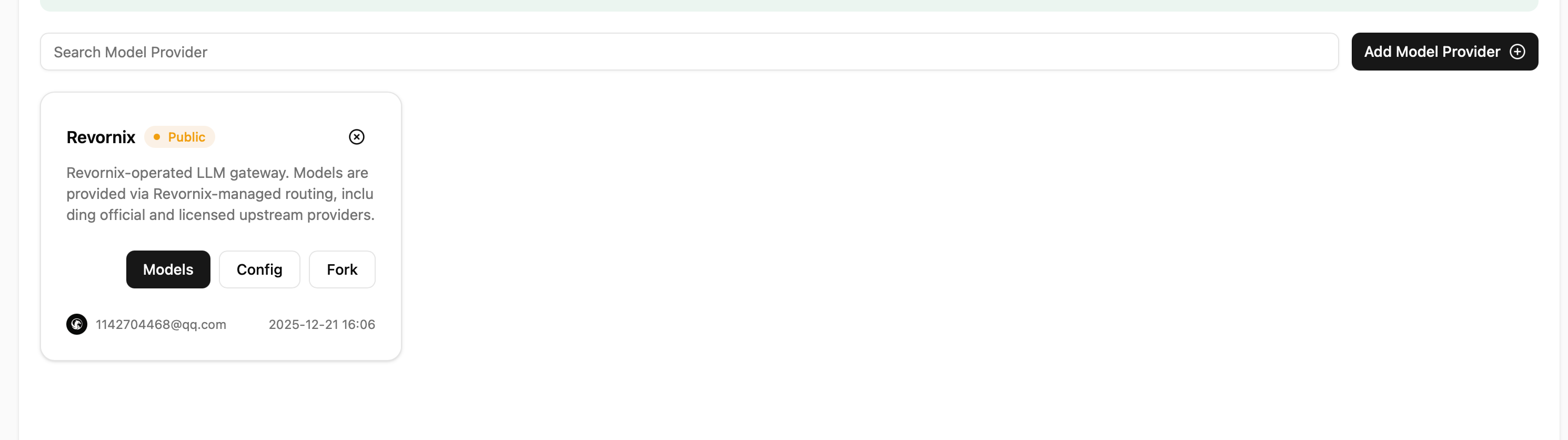
Starting from v0.6.1, the system supports a model community. You can make your configured models public for other users. Public models display a yellow Public badge, and you can search other users’ public models in the community.

If you want to use a model provider shared by others, you must click the Fork button on the provider card, otherwise the system cannot retrieve it. If you no longer want to use it, we recommend un-forking it.
Select custom models for use
Users can choose specific models for specific purposes.
The document summary model not only summarizes documents and generates the Summary, title, description, and section, but also participates in knowledge graph construction as the main model for entity and relation extraction. I recommend configuring a strong model for this.
- Document ingestion summary model
- Revornix AI chat model configuration

Last updated on